Assign Administrator Roles to the App Registration
Once you have created the App Registration, you must assign it Microsoft Entra Administrator roles using the table shown in Secure Connection using an App Registration as a guide.
| ➢ | Do the following: |
| 1. | In the search box in the Menu bar, type Microsoft Entra Roles and administrators. |
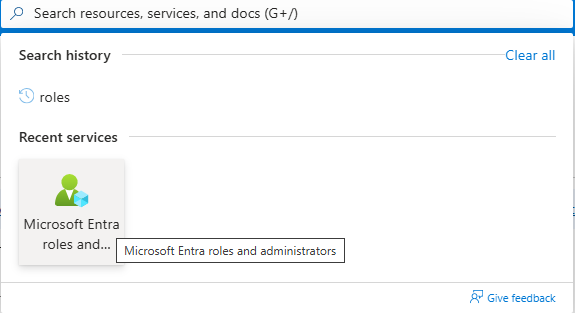
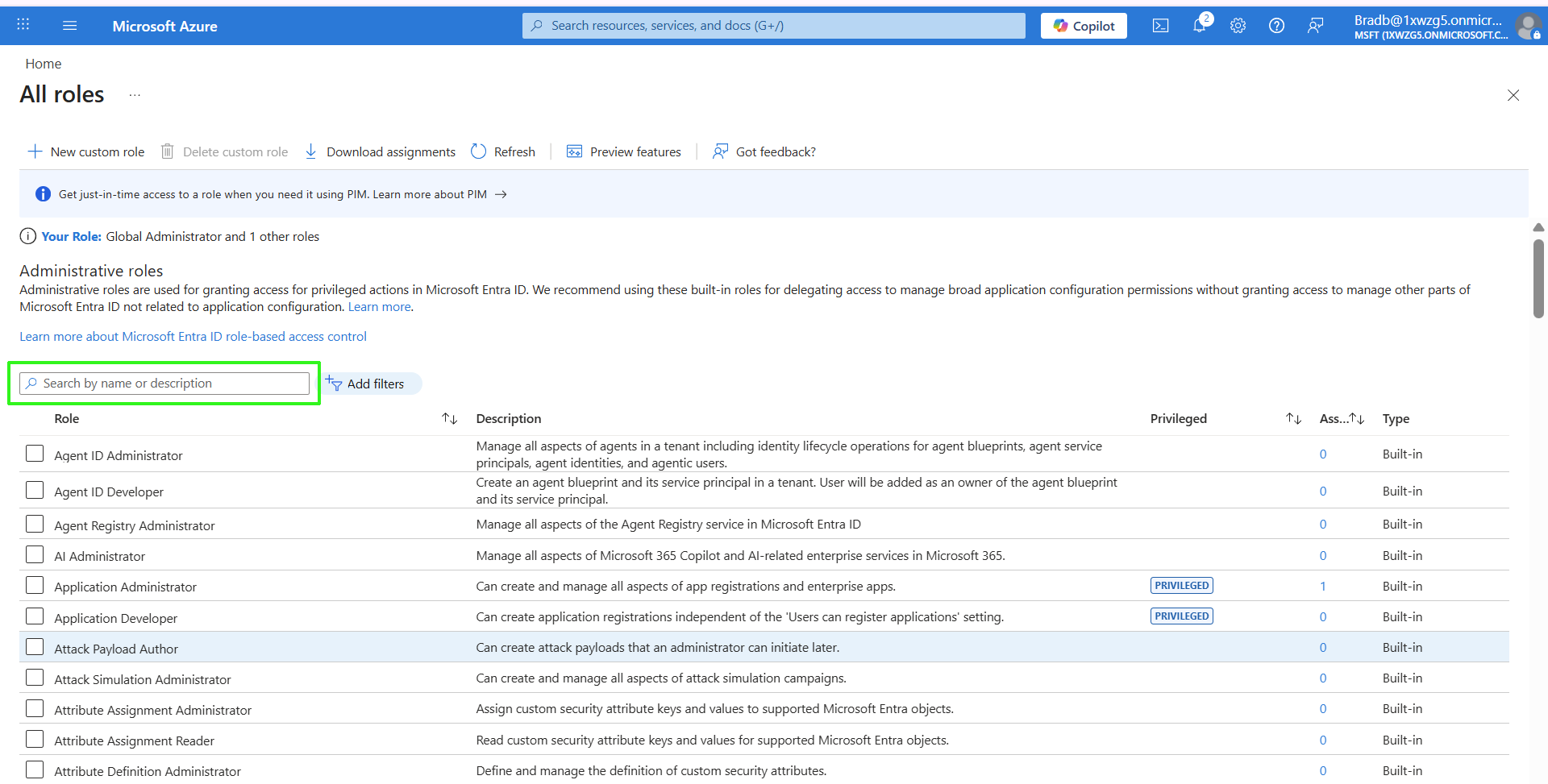
| 2. | In the Search box, start typing the name of the required role. In the example below "Teams Administrator". |
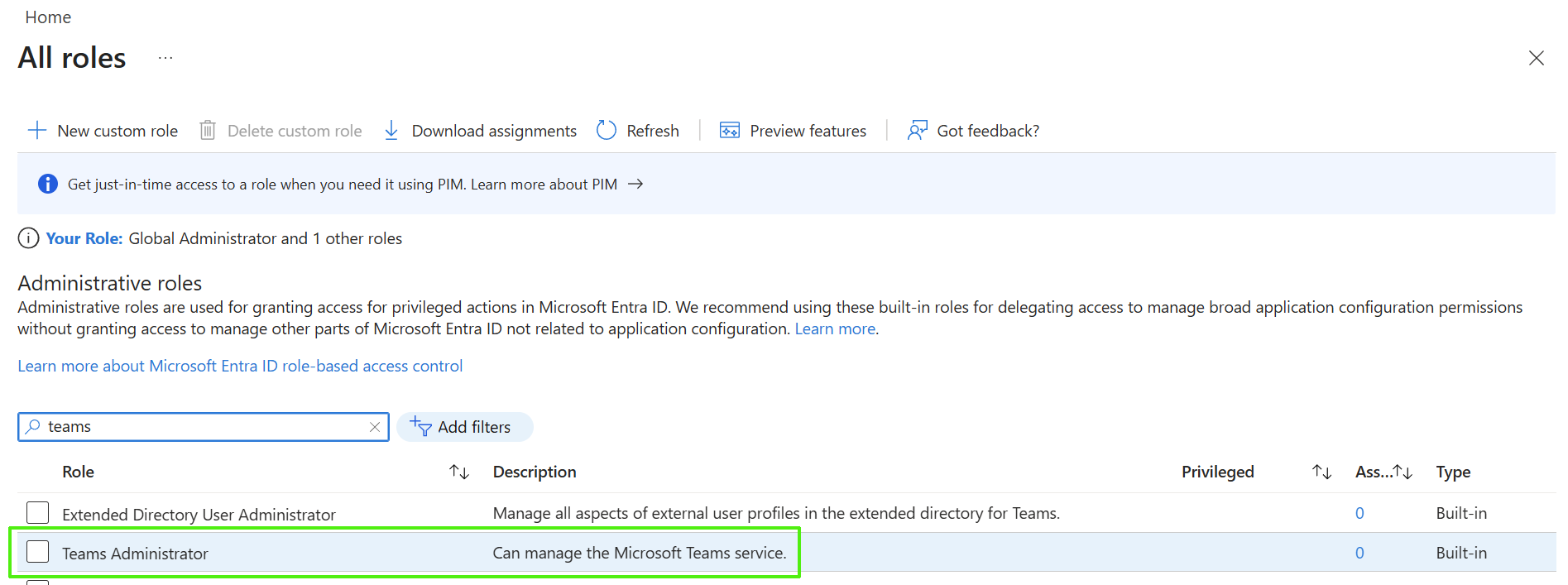
| 3. | Click the entry. |
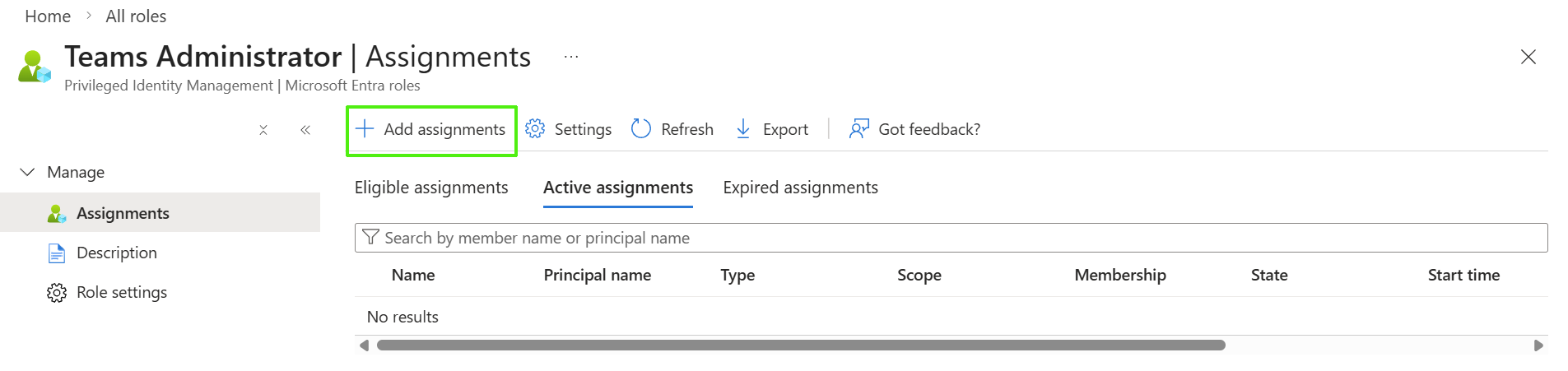
| 4. | Click Add assignments. |
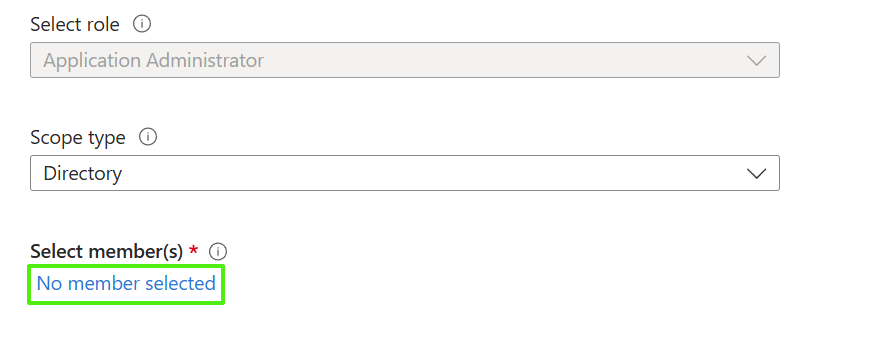
| 5. | Click No member selected. |
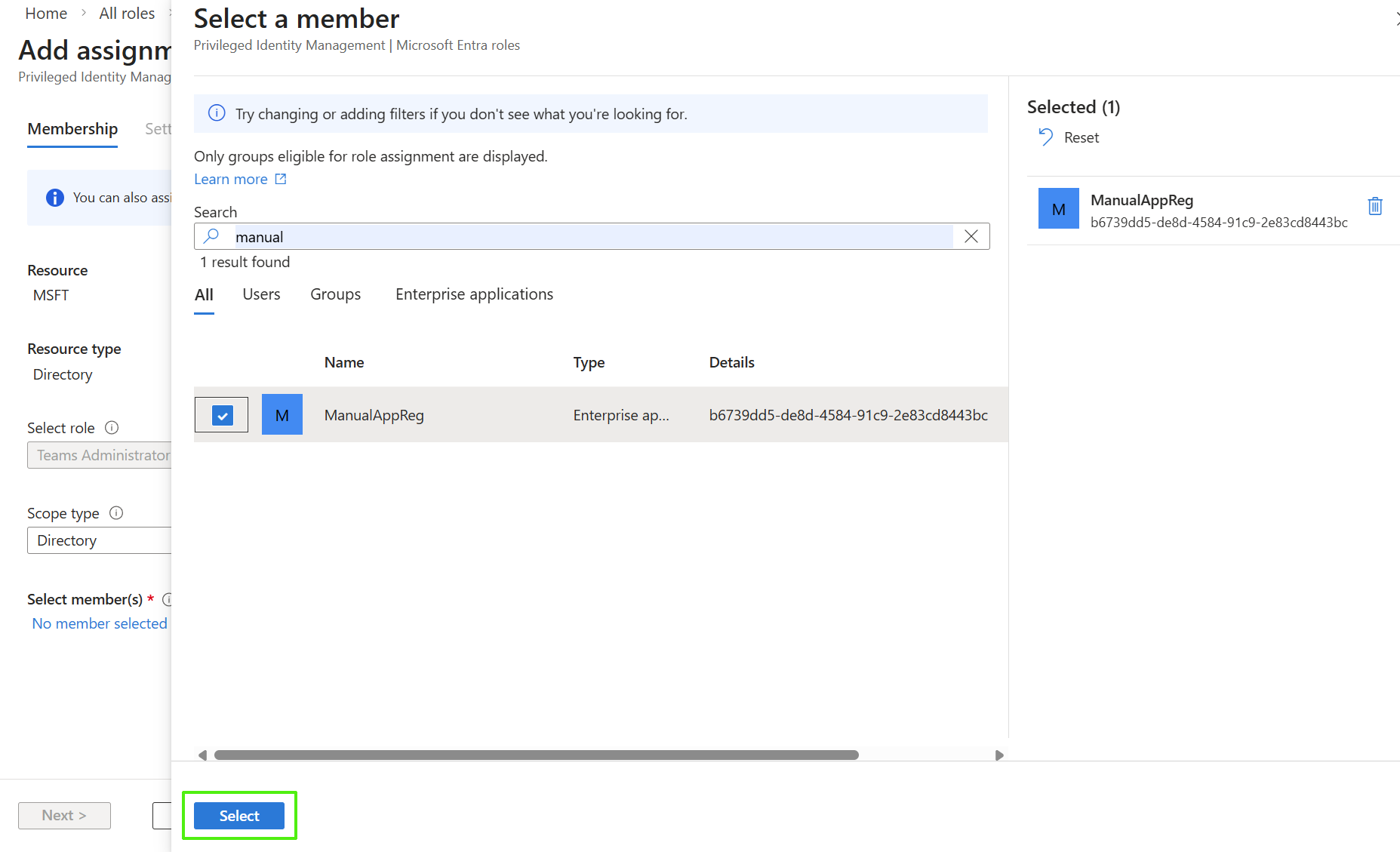
| 6. | Start typing the name of the App Registration that you created in Create App Registration Manually, select it and then click Select. |
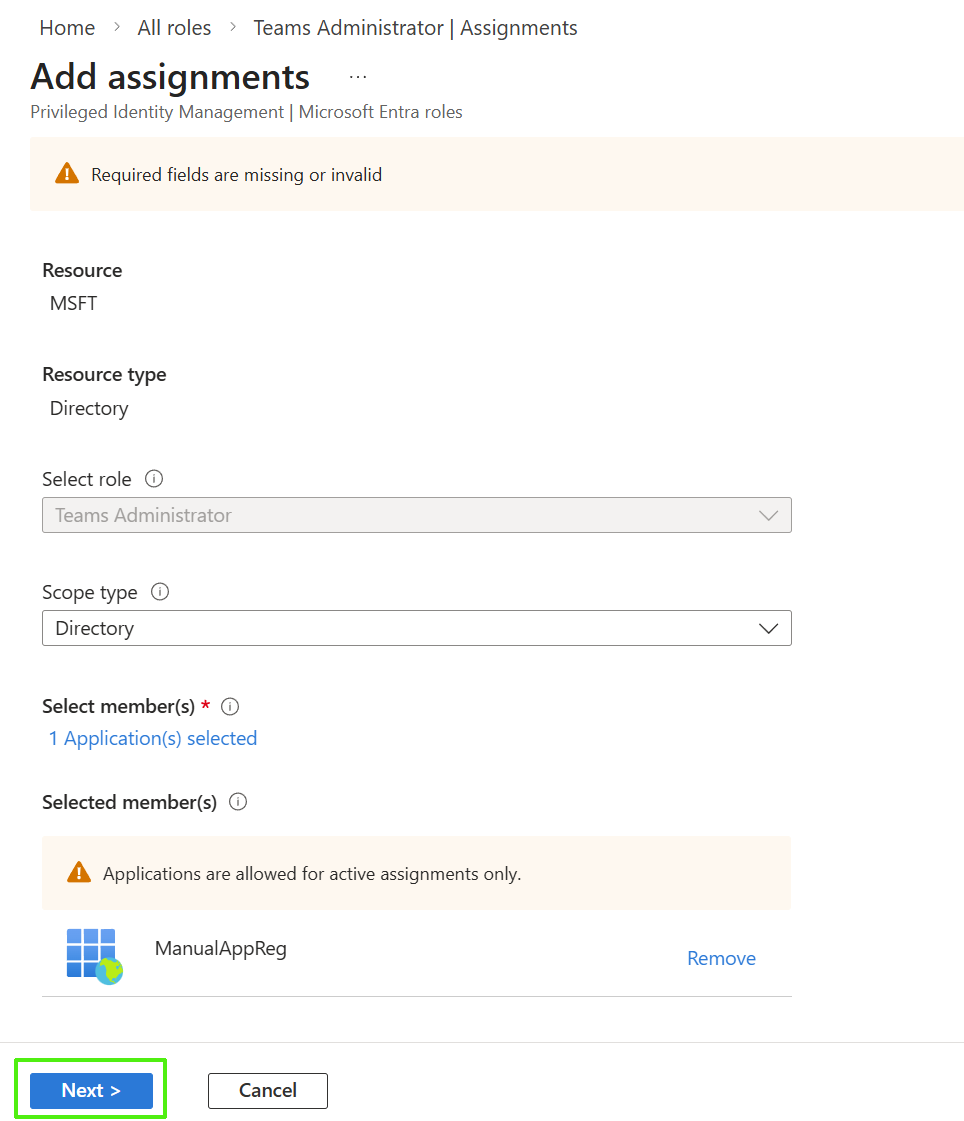
| 7. | Click Next. Enter free text to explain the justification for the role assignment. |
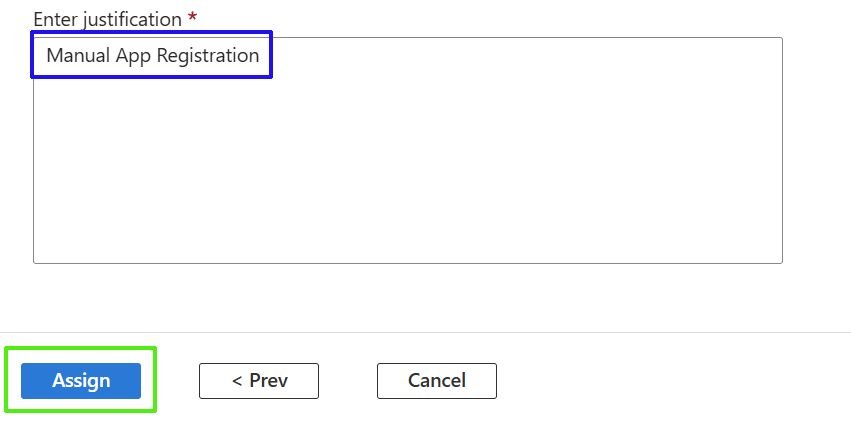
| 8. | Click Assign. |
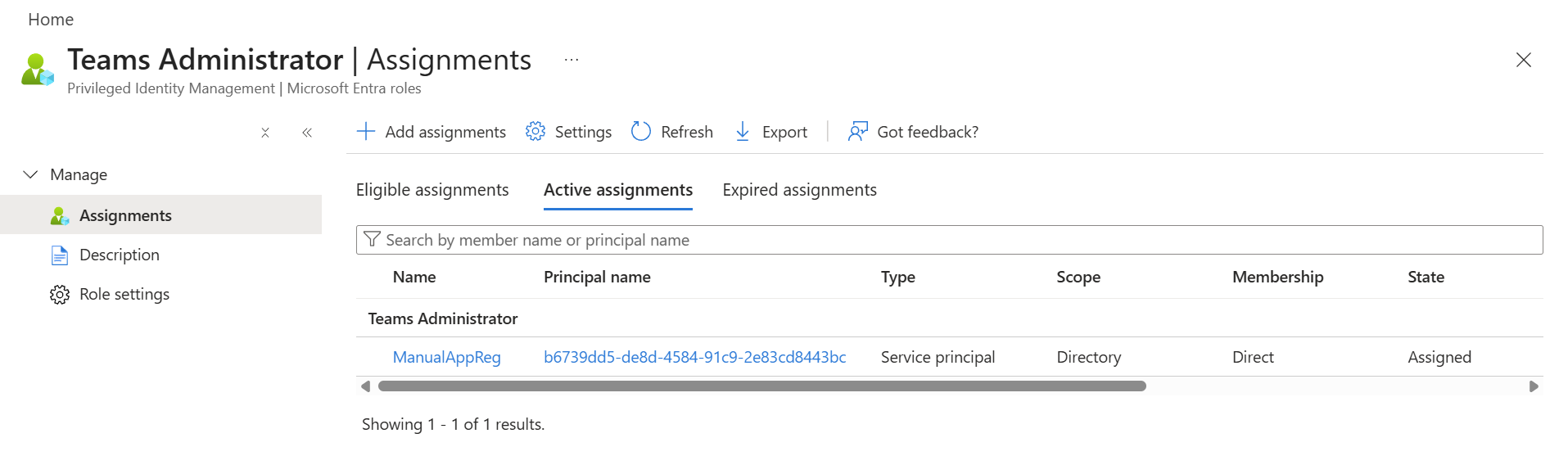
| 9. | Refresh the screen to display the new assignment. |
| 10. | Repeat the above steps for each role that you wish to assign. |
| 11. | Proceed to Authenticate using Manually Created App Registration. |